Containers with Docker
Containers
- A way to package applications with all the necessary dependencies and configurations
- Portable artifact, easily shared and moved around
- Makes development and deployment more efficient
- Repository
- Containers are hosted here
- Companies have private repositories
- There are also public repositories. e.g. Docker Hub
- Other container technologies
- containerd
- cri-o
Container vs Image
- Made of layers of images
- Mostly Linux Base Image because it's small
- Application image is on top of the base
- Mostly have intermediate images as well
- Image
- The actual package
- Artifact that can be moved around
- Container
- Actually start the application
- Container environment is created
Docker vs Virtual Machine
- OS has 2 layers
- OS Kernel
- Applications layer
- Docker and virtual machines are all virtualization tools
- Docker virtualizes the applications layer
- Uses kernel of the host
- Virtual machine virtualizes
- Has applications layer
- Has its own kernel
- Docker images are much smaller
- Docker images are much faster
- Compatibility
- VM of any OS can run on any OS host
- Can't do that on Docker
- For example, a Linux-based docker image may not be compatible with the Windows kernel. (Windows below 10 and certain mac versions)
- You can install a Docker Toolbox which abstracts away the kernel which makes it possible for the host to run different Docker images
Docker Architecture and Its components
- Containers existed before Docker
- Docker made containers popular
- You install Docker with a Docker Engine
- Docker Engine
- Docker Server
- Container runtime
- Pulling images
- Managing images and containers
- Volumes
- Persisting data
- Network
- Configuring network for container communication
- Build images
- Container runtime
- API
- Interacting with Docker Server
- CLI
- Client to execute Docker commands
- Docker Server
- Alternative for certain parts
- Container runtime
- containerd
- cri-o
- Build
- buildah
- Container runtime
Main Docker Commands
- Container is a running environment for an image
Common Docker commands
# List images
docker images

# Pull
docker pull redis

# Run image (Pulls and starts image)
docker run redis

# Run in detached mode
docker run -d redis

# List of running containers
docker ps

# Stopped and running containers
docker ps -a

# Stop container
docker stop <id>

# Start container
docker start <id>
- Container port vs Host port
- Multiple containers can run on your host machine
- Your laptop has only certain ports available
- Need to create a binding between a port on your machine and the container
- If you open 2
5000ports on your host, you will have an error - Can have 2 containers running on the same port, but they must be bound to different ports on the host
Port binding
docker run -d -p 6000:6379 redis
Debug Commands
# Logs
docker logs <id>
docker logs <container_name>

# Name container
docker run -d -p 6001:6379 --name redis-old redis:4.0

# Exec
docker exec -it <id> /bin/bash
docker run: Imagesdocker start: containers- Restart stopped container
Docker Demo Project Overview
- The app is a JS app
- Developed in JS
- Use MongoDB from Docker Hub
- Commit changes to git
- Jenkins (CI)
- Build JS App and create Docker Image
- Pushes image to private Docker repository
- Dev server pulls both JS image and MongoDB image, and they're configured to communicate with each other
Developing with Docker
- Mongo Express is used to visualise the mongodb database
docker pull mongo
docker pull mongo-express
Docker network
- Docker creates its isolated docker network
- Containers in the same network can talk to each other using just the container name
docker network ls
docker network create mongo-network
- Add a network option when running mongo containers
Mongodb
docker run -p 27017:27017 -d -e MONGO_INITDB_ROOT_USERNAME=admin -e MONGO_INITDB_ROOT_PASSWORD=password --name mongodb --net mongo-network mongo
Mongo Express
docker run -d \
-p 8081:8081 \
-e ME_CONFIG_MONGODB_ADMINUSERNAME=admin \
-e ME_CONFIG_MONGODB_ADMINPASSWORD=password \
-e ME_CONFIG_MONGODB_SERVER=mongodb \
--net mongo-network \
--name devops-mongo-express \
mongo-express
Check logs
docker logs <id> | tail
Docker Compose: Run multiple Docker containers
- It can be used to run and manage multiple containers
- Docker compose handles creating a common network for our containers
docker-compose-yaml
version: "3"
services:
  # my-app:
  # image: ${docker-registry}/my-app:1.0
  # ports:
  # - 3000:3000
  devops-mongodb:
    image: mongo
    ports:
      - '27017:27017'
    environment:
      - MONGO_INITDB_ROOT_USERNAME=admin
      - MONGO_INITDB_ROOT_PASSWORD=password
    volumes:
      - mongo-data:/data/db
  devops-mongo-express:
    image: mongo-express
    restart: always
    ports:
      - '8080:8081'
    environment:
      - ME_CONFIG_MONGODB_ADMINUSERNAME=admin
      - ME_CONFIG_MONGODB_ADMINPASSWORD=password
      - ME_CONFIG_MONGODB_SERVER=mongodb
    depends_on:
      - "devops-mongodb"
# volumes:
#   mongo-data:
#     driver: local
Start containers
docker-compose -f docker-compose.yaml up
Stop containers
docker-compose -f <file> down
- Removes network and containers
Dockerfile: Build your own Docker image
- Dockerfile is a blueprint for creating docker images
- With RUN, you can execute Linux commands
Building the Docker image
docker build -t my-app:1.0 .
Delete image
docker rmi <id>
Delete container
docker rm <id>
Envs
env
Private Docker Repository
- Create a private Docker repository on AWS
- Create a repository per image. Specific to ECR (Elastic Container Registry)
- Different tags of the same image are stored in the repository
- You have to log in to the private repository
Log in to AWS
- View in Push commands
aws ecr get-login-password --region us-east-1 | docker login --username AWS --password-stdin 227984707254.dkr.ecr.us-east-1.amazonaws.com
Image naming in Docker registries
registryDomain/imageName:tag- With Docker Hub, we were able to use a shorthand because that's how it's configured. Eg.
docker pull mongo:4.2-->docker pull docker.io/library/mongo:4.2
- In AWS ECR, there is no shorthand for our private repos
docker pull registryDomain:my-app:latest
Push commands
docker build -t devops-app .

docker tag devops-app:latest 227984707254.dkr.ecr.us-east-1.amazonaws.com/devops-app:latest

docker push 227984707254.dkr.ecr.us-east-1.amazonaws.com/devops-app:latest
- Make changes to the App, rebuild and push a new version to AWS repo
- Go through the same process
docker build -t devops-app .

docker tag devops-app:latest 227984707254.dkr.ecr.us-east-1.amazonaws.com/devops-app:latest

docker push 227984707254.dkr.ecr.us-east-1.amazonaws.com/devops-app:latest
- On ECR, each repo can hold 1000 images
- Jenkins will need credentials to push to repository
Deploy Docker application on server
- Deploy image to server
- We'll use docker-compose
- You will need all containers that make up the application environment
- The server needs to login to pull from the Private repository
- The docker-compose file would be used on the server to deploy all the applications/services
docker-compose
version: "3"
services:
  devops-app:
    image: 227984707254.dkr.ecr.us-east-1.amazonaws.com/devops-app:1.4 ####
    ports:
      - '3000:3000'
  devops-mongodb:
    image: mongo
    ports:
      - '27017:27017'
    environment:
      - MONGO_INITDB_ROOT_USERNAME=admin
      - MONGO_INITDB_ROOT_PASSWORD=password
    # volumes:
    #   - mongo-data:/data/db
  devops-mongo-express:
    image: mongo-express
    restart: always
    ports:
      - '8080:8081'
    environment:
      - ME_CONFIG_MONGODB_ADMINUSERNAME=admin
      - ME_CONFIG_MONGODB_ADMINPASSWORD=password
      - ME_CONFIG_MONGODB_SERVER=devops-mongodb
    depends_on:
      - "devops-mongodb"
# volumes:
#   mongo-data:
#     driver: local
Docker Volumes: Persisting Data
- Used for data persistence in Docker
- Folder in physical host file system is mounted into the virtual file system of Docker
- Data in the container gets automatically replicated on the host file system
- 3 Volume types
- Host volume
- You decide where on the host file system the reference is made
docker run -v /home/mount/data:/var/lib/mysql/datahost dir:container dir
- Anonymous Volume
- Create a volume by referencing just the container directory
- For each container, a folder is generated that gets mounted
docker run -v /var/lib/mysql/data
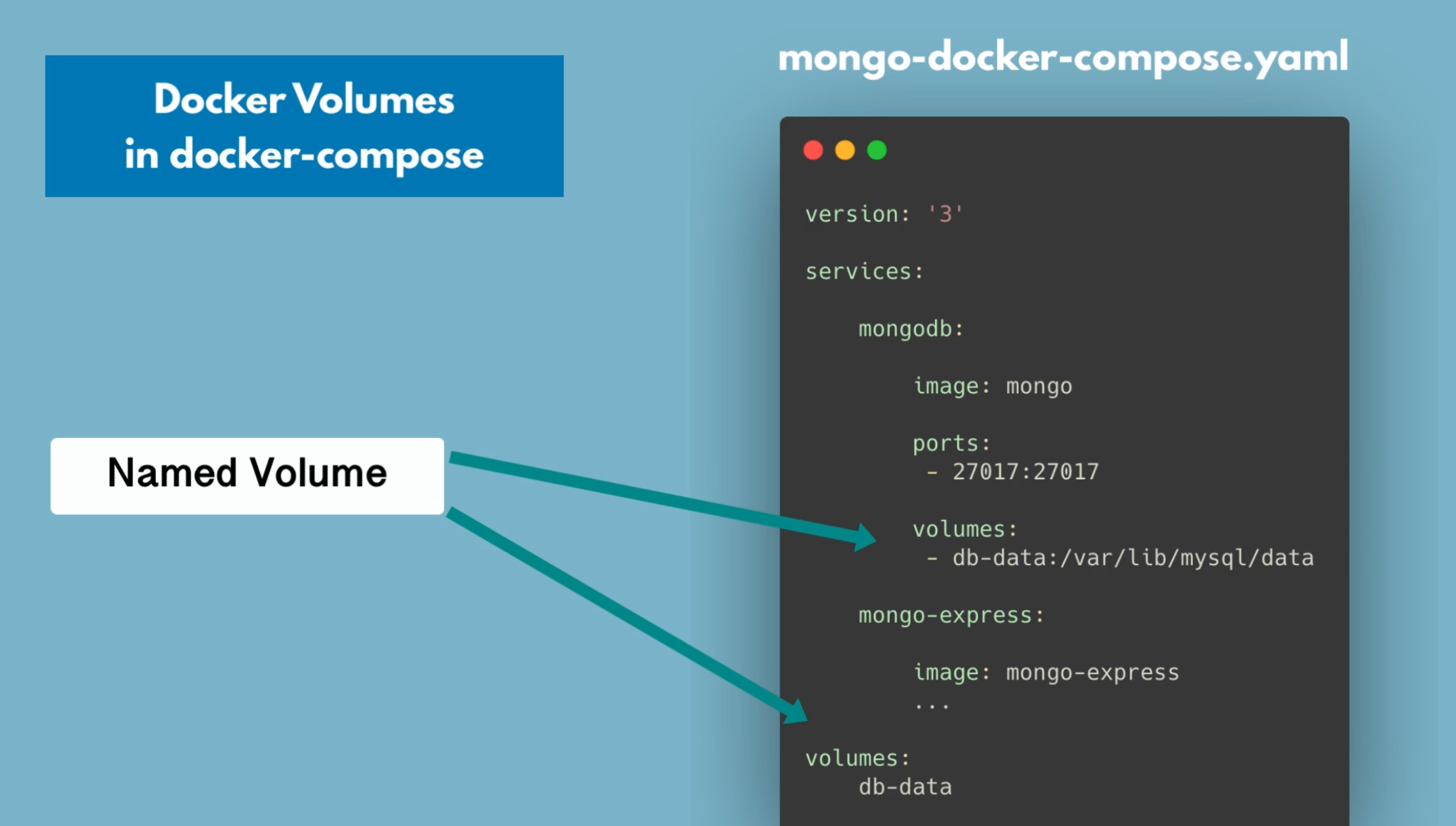
- Named Volume
docker run -v name:/var/lib/mysql/data- You can reference the volume by name
- Should be used in production
- Host volume
docker-compose
 volumes:
   mongo-data:
     driver: local
Docker Volumes Demo
- Define named volume in Docker Compose file
- Default storage paths
- mongodb:
/data/db - mysql:
var/lib/mysql - postgres:
var/lib/postgresql/data
docker-compose.yaml
version: "3"
services:
  devops-app:
    image: 227984707254.dkr.ecr.us-east-1.amazonaws.com/devops-app:1.4
    ports:
      - '3000:3000'
  devops-mongodb:
    image: mongo
    ports:
      - '27017:27017'
    environment:
      - MONGO_INITDB_ROOT_USERNAME=admin
      - MONGO_INITDB_ROOT_PASSWORD=password
    volumes:
      - mongo-data:/data/db # This is the default path for mongodb in the container
  devops-mongo-express:
    image: mongo-express
    restart: always
    ports:
      - '8080:8081'
    environment:
      - ME_CONFIG_MONGODB_ADMINUSERNAME=admin
      - ME_CONFIG_MONGODB_ADMINPASSWORD=password
      - ME_CONFIG_MONGODB_SERVER=devops-mongodb
    depends_on:
      - "devops-mongodb"
volumes:
  mongo-data: # name of volume reference
    driver: local
Where volumes are located
- Windows:
ProgramData\docker\volumes - Linux:
/var/lib/docker/volumes - Mac:
/var/lib/docker/volumes- Creates a Linux vm and stores all the Docker data there
Enter terminal for Linux vm
- Didn't work on M1
screen ~/Library/Containers/com.docker.docker/Data/com.docker.driver.amd64-linux/tty
End screen session
Ctrl + a + k
Type y
Create Docker-Hosted Repository On Nexus
- Create docker-hosted repository
- We can then get the url we'll use to push images to this repository
- Create User Role for Docker Repo
- Need to log in with a Nexus user who has access to the docker-hosted repository
Docker login to Nexus Docker repository
- Go to docker-hosted on Nexus and edit HTTP
- Docker CLI can't connect using the docker-hosted URL
- The endpoint will be the IP address and a port
- We need an individual port for the docker repo
- We'll use port 8083 for HTTP
- Need to open port on Droplet's firewall configuration
- Need to configure Realm on Nexus
- When we log in, we get an auth token for the client that will be stored on the local machine
- Token will be stored in ~/.docker/config.json
- Need to configure the issuing of the token in Realms
- Add
Docker Bearer Tokenand save
- Docker by default only allows the client to communicate with HTTPS endpoints
- Change this behaviour by editing the /etc/docker/daemon.json file on Linux
- On Docker desktop, you can change it in preferences
{
  "builder": {
    "gc": {
      "defaultKeepStorage": "20GB",
      "enabled": true
    }
  },
  "experimental": false,
  "features": {
    "buildkit": true
  },
  "insecure-registries": ["46.101.137.161:8083"] // Nexus' IP and the port we opened for Docker
}
docker login 46.101.137.161:8083
- If
nexusis being run in container, map the hosted repo's port on the container to the server.
Push Image to Nexus Repo
Build and tag image
docker tag my-image:1.0 46.101.137.161:8083/my-image:1.0
Push
docker push 46.101.137.161:8083/my-image:1.0
- The different layers of the image are also pushed and handled as assets
- These layers or assets can be used by other docker images as well
Fetch Docker image from Nexus
curl -u admin:password -X GET 'http://46.101.137.161:8081/service/rest/v1/components?repository=docker-hosted'
Deploy Nexus as a Docker container
- Steps to run Nexus on Droplet
- Install Java
- Download nexus package
- Untar Nexus package
- Create nexus user
- Give user permissions
- Run Nexus with Nexus user
- You can install nexus as a Docker Container
Create droplet
apt update
snap install docker
- When we start nexus, we need to persist data since its running in a container
- Need to configure a volume for it
docker volume create --name nexus-data
docker run -d -p 8081:8081 --name nexus -v nexus-data:/nexus-data sonatype/nexus3

apt install net-tools
docker ps
- When you enter the container, Nexus is already running with a nexus user and not root
Check current user
whoami
Locate volume
docker volume ls
docker inspect <volume-name>